


SEO isn’t just about writing the right words in the right places. Below the content, sits a technical layer, the one that decides whether search engines can even reach that content in the first place.
That layer is technical SEO. Crawling, indexing, rendering, site structure, speed, the pieces that have to work before ranking is even possible.
Search is shifting toward AI Overviews, ChatGPT search and answer engines that pull directly from indexed content. So if your site has a weak technical foundation, it will be invisible to AEO too. Because an AI system can’t cite a page it never managed to crawl, render or understand.
Get it wrong and your best blog post, your sharpest service page, your carefully written homepage copy, none of it matters. Google never sees any of it the way you intended.
So technical SEO isn’t optional. It never has been in the first place.
This guide covers the technical problems that actually move the needle for a business, how you’d spot each one and what to fix first.
Key Takeaways
- Technical SEO – The work that lets search engines crawl, render, index and understand your website. This is separate from content quality, on-page optimization or backlinks though all four work together.
- Why technical SEO matter for AI search visibility – AI Overviews, ChatGPT searchand other answer engines can only cite pages they can access and understand. Weak technical SEO blocks both traditional rankings and AEO visibility.
- The most common technical SEO issues – Accidental noindex or robots.txt blocks, sitemap errors, duplicate URLs with wrong canonicals, broken redirects and 404s, orphan pages, slow load times, JavaScript rendering gaps and incorrect schema or HTTPS setup are the most common ones that impact websites.
- Technical SEO issues to fix first – Anything blocking indexing or access to a high-value page. Noindex on service pages, 5XX errors, broken canonicals and redirect loops outrank cosmetic issues every time.
- Can business owners fix technical SEO issues themselves – Some of it. Search Console monitoring, sitemap submission and internal linking are manageable in-house. Robots.txt changes, server redirects and rendering fixes usually need a developer to handle correctly.
- How often should a technical SEO audit happen – At minimum after every redesign or migration and roughly every quarter for active, growing sites.
What is Technical SEO?
Technical SEO is making it easier for search engines to crawl your site, render it, index it and understand what’s on each page. It’s the infrastructure sitting underneath everything else you do in SEO/marketing.
It touches a wide range of things. Crawlability, XML sitemaps, Robots.txt rules, noindex tags, canonical tags, redirects and broken pages, internal linking. mobile usability, page speed and Core Web Vitals, javaScript rendering, structured data, HTTPS, hreflang, if you run multilingual pages. That’s a long list and most businesses will only ever wrestle with a handful of these at once. That’s normal.
Here’s where people get tangled up. Technical SEO isn’t the same thing as content SEO, on-page SEO or link building, though it does touch or impact these in a way. They’re cousins, not siblings.
| SEO Type | The Core Question It Answers |
|---|---|
| Technical SEO | Can search engines access and understand the site? |
| Content SEO | Does the site answer what people are actually searching for? |
| On-page SEO | Is each page clearly optimized for its topic and intent? |
| Off-page SEO | Does the site have authority, trust and relevant outside mentions? |
All four work together, obviously. But a great content piece sitting behind a noindex tag goes nowhere. A technically flawless page with thin, forgettable copy won’t beat a competitor with sharper writing either.
However, Google’s bar at a high level is actually pretty forgiving. Don’t block Googlebot. Return a working page. Give it something indexable to chew on. Clear that bar and you’re eligible. But again, being eligible isn’t the same as ranked and that gap trips up a lot of business owners.
How Search Engines Process Your Website
Before you go hunting for problems, it’s worth knowing the order search engines work in. Once you see the sequence, the fixes stop feeling random and start feeling obvious.
Discovery
Google has to find a URL before it can do anything with it, usually through internal links, your XML sitemap, redirects or links pointing in from other sites.
A page with zero internal links pointing to it and a missing sitemap entry will give search engines a hard time discovering the page consistently.
Crawling
This is Googlebot literally knocking on the door and requesting the page from your server. If it’s blocked with robots.txt, throws a server error, or is hiding behind a login, or sends it looping through redirects, the crawl just stalls.
Rendering
Rendering is where Google processes that code to see what a visitor would actually see. A lot of modern sites lean on JavaScript to load navigation, product details or entire sections of a page. Google handles JavaScript reasonably well these days. But crawl access still comes first and if your main content only shows up after some flaky client-side interaction, Google might never see the full page.
Indexing
Page indexing is the process search engines use to analyze, catalog and store your web pages in their huge databases.
Remember, a crawled, rendered page can still get skipped in indexing if it has a noindex tag. Or, maybe it looks nearly identical to another page on your site, maybe the technical signals are weak or the page just doesn’t look worth storing.
Search engines usually have a set budget for crawling and indexing and it can prioritize which pages to crawl or index based on resource efficiency and content quality.
Canonicalization
When search engines find several near-identical URLs, it has to pick one as the “real” version.
Websites can quickly become messy with duplicate URLs or nearly identical URLs, often without realizing it.
Take this example:
https://hovsoltechnologies.com/service
https://www.hovsoltechnologies.com/service
https://hovsoltechnologies.com/service?utm_source=email
Four URLs. One page. But the different URL prefixes and suffixes leaves search engines guessing which one you actually meant.
Ranking
Only a page that survives discovery, crawling, rendering, indexing and canonicalization even gets a shot at competing in results.
That’s why we treat technical SEO as a floor, not a ceiling. It clears obstacles. It won’t write your copy for you and it definitely won’t earn your backlinks.
Now that you have the foundational knowledge, let’s look at the most common technical SEO issues and how you can fix them.
1. Important Pages Blocked by Robots.txt or Noindex Tags
This is the one that keeps us up at night, honestly.
Robots.txt and noindex sound similar. They are not the same tool and mixing them up can quietly tank a site’s visibility for months before anyone notices.
| What | Controls | Common Mistake |
|---|---|---|
| Robots.txt | Whether crawlers can access a URL | Blocking an entire section, like Disallow: /services/, meant only for staging |
| Noindex/td> | Whether a page appears in search results | Applying it to service pages, product pages, or blog posts by accident |
Robots.txt manages crawler access. It’s fine for staging environments or private areas. It’s a disaster when /services/ happens to be where your most valuable pages live.
Here’s the twist people miss: Google has said outright that robots.txt isn’t a reliable way to keep a page out of Search. If you actually want a page hidden, use noindex or put it behind a login.
Noindex tells search engines not to include a page in results. It looks like this in the HTML:
<meta name=”robots” content=”noindex”>
It’s useful to unindex thank-you pages, internal search results, and temporary campaign pages. The real problem happens when it lands on a service page, product page or location page by mistake.
We saw this play out with a law firm client. Redesign goes live, everything looks good but previously ranking local keywords are sliding down. A quick audit in the Search Console shows every single practice area pages that we optimized for local keywords are set to noindex. The reason was our staging configuration got copied straight to production. The content was never the issue. The site was flat out telling Google not to index its own money pages.
How to Check If Your Page is Set to “noindex”
- Open Google Search Console.
- In the top search bar, paste the page URL and hit enter (make sure to select the same domain in GSC as the page)
- Analyze the results
- It will tell you if the page is crawled, indexed, HTTPS status, breadcrumbs
- Click on “Test Live URL” to instantly check page status at present
Watch for “Excluded by noindex tag,” “Crawl allowed: No,” page fetch failures, an unexpected canonical selectionor robots.txt blocks.
What to Fix
Strip accidental noindex tags off valuable pages. Audit your SEO plugin templates, page-builder defaults and CMS-level index settings, since a lot of these mistakes get baked in at the template level, not the page level. Check robots.txt for outdated blanket disallow rules. Test several URLs of the same page type, not just one.
Once you fix the accidental “noindex,” go back to Search Console and follow steps 1 and 2. In results page, click on “REQUEST INDEXING” so google can retry indexing the page. This usually fixes the issue.
2. XML Sitemap Problems
An XML sitemap is just a list of URLs you want search engines to consider indexing. It helps, especially on large, new or poorly linked sites. But it doesn’t guarantee anything gets crawled or indexed. People treat the sitemap like a magic wand but it’s closer to a suggestion box.
A clean sitemap only includes URLs that are live, returning a 200 response, meant to appear in search, the canonical version, not redirected, not blocked by robots.txt, not marked noindex and worth indexing in the first place. That’s a lot of “nots” and each one is a way sitemaps go wrong in practice.
Here’s a visual explanation on the common issues with XML sitemap
- Redirected URLs left in the sitemap
- HTTP URLs on a site that’s already moved to HTTPS
- Noindex pages sitting alongside valuable ones
- Duplicate parameter URLs
- Pages that were deleted months ago
- A sitemap nobody updated after a migration
We’ve seen sitemaps listing both http:// and https:// versions of the same service pages, plus old redirected URLs from a previous redesign, all at once. That sends Google mixed signals about which version actually matters. The fix isn’t complicated. Include only the final, preferred, indexable URLs. Nothing else earns a spot.
2. XML Sitemap Problems
An XML sitemap is a list of URLs you want search engines to consider indexing. It can help, especially on large, new, or poorly linked websites. But it does not guarantee that Google will crawl or index every URL listed.
Think of it less like a magic wand and more like a suggestion box.
A clean sitemap should contain only URLs that are:
| Sitemap issue | Why it creates problems | What to do instead |
|---|---|---|
| Redirected URLs are left in the sitemap | Google has to process a URL only to be sent somewhere else. It also creates mixed signals about which page you want indexed. | Remove redirected URLs and list only the final destination URL. |
| HTTP URLs remain after moving to HTTPS | Google may see conflicting versions of the same page and spend time processing outdated, insecure URLs. | Include only the preferred HTTPS URLs in the sitemap. |
| Noindex pages appear alongside valuable pages | You are asking Google to consider pages for indexing while also telling it not to index them. | Remove noindex pages from the sitemap unless there is a specific technical reason to keep them there. |
| Duplicate parameter URLs are included | URLs with tracking, filter, sorting, or session parameters can create duplicate-content and crawl-efficiency problems. | Include the clean canonical URL, not parameter variations. |
| Deleted pages remain in the sitemap | Google repeatedly encounters URLs that no longer exist, which makes the sitemap less useful as a source of current website information. . | Remove deleted URLs. Redirect them only when there is a close, relevant replacement. . |
| The sitemap was not updated after a migration or redesign | The sitemap may still list old URLs, changed page paths, duplicate domains, or outdated page structures. | Generate and submit a new sitemap containing only current, preferred URLs. |
| Canonical tags point elsewhere | A sitemap URL that canonicalizes to another page sends inconsistent signals about which URL matters. | Include only URLs that are self-canonical or clearly intended as the preferred version. |
| Broken or server-error URLs are included | Pages returning 404 or 5XX errors cannot be reliably indexed and may indicate a broader technical problem. | Fix the URL, remove it from the sitemap, or add the correct final page once it is live. |
That is a lot of conditions, and each one represents a common way XML sitemaps go wrong.
The fix is straightforward: include only the final, preferred, indexable URLs. Nothing else earns a spot.
3. Duplicate URLs and Incorrect Canonical Tags
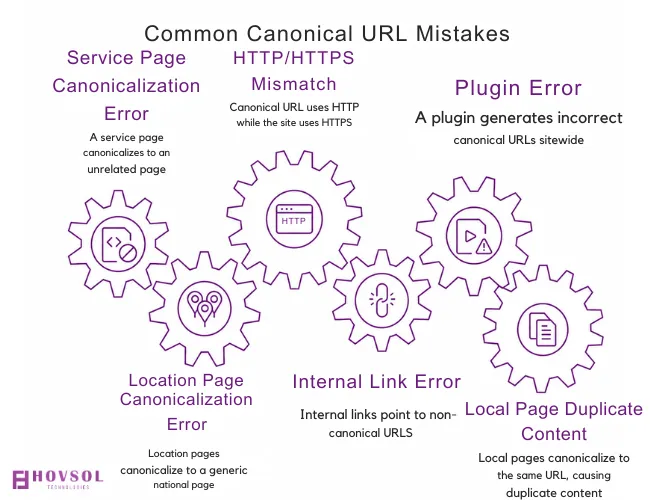
Common culprits that lead to this technical issue are HTTP versus HTTPS versions, www versus non-www, tracking parameters, product filters, printer-friendly pages, duplicate CMS pages, trailing-slash variations, near-identical location pages and product variants.
The right way to settle this argument is to set a proper canonical tag per page that tells search engines which URL version is the preferred one.
A canonical URL set up code looks like this:
<link rel=”canonical” href=”https://hovsoltechnologies.com/preferred-page/” />
It’s really easy to end up with mistakes when setting your canonical URLs:
- A service page that canonicalizes to something unrelated
- Every location page pointing back to one generic national service page
- The canonical uses HTTP while the rest of the site runs HTTPS
- Internal links keep pointing to non-canonical URLs
- A plugin quietly generates the wrong canonical sitewide and nobody catches it for months
Think of a business with separate pages for “Roof Repair in Raleigh,” “Roof Repair in Durham” and “Roof Repair in Cary.” If every one of those have the canonical URL set to /roof-repair/, Google may start treating three distinct local pages as duplicates of a single page. That’s three markets worth of visibility gone, because of one templated setting.
What to Fix
Set self-referencing canonicals on your important original pages. Make sure canonicals, internal links, the sitemap, redirects and hreflang all agree on the preferred URL, because when they disagree, Google picks a winner and it might not be the one you wanted.
Use URL Inspection to compare your declared canonical against Google’s selected one. And don’t reach for noindex to paper over an ordinary duplicate-content problem. That’s a canonicalization job, not a noindex job.
4. Redirect Chains, Broken Links, 404s, 5XX Errors
URLs change all the time. Services get consolidated, products get discontinued, sites get redesigned. None of that is inherently a problem. The problem starts when old URLs get handled sloppily.
Here’s what each of them look like:
| Issue | What it means | Why it matters | What to do |
|---|---|---|---|
| Redirect chain | An old URL redirects to an intermediate URL, which then redirects again to the final destination. | Extra redirect steps can slow down users, complicate tracking, and make future maintenance harder. | Update the original URL so it redirects directly to the final relevant page. |
| Redirect loop | Page A redirects to Page B, and Page B redirects back to Page A. | Users receive a browser error, and search engines cannot reach a usable destination page. | Review redirect rules, plugins, server settings, and domain rules to remove the conflicting redirect. |
| Broken internal links | A page on your website links to a URL that no longer exists or returns a 404 error. | Users and crawlers hit dead ends, which can interrupt navigation and weaken important page paths. | Update the internal link to the correct live page, restore the missing page, or remove the link if there is no relevant replacement. |
| Low-value 404 pages | A deleted page returns 404 but has no traffic, backlinks, internal links, or business value. | Not every 404 is a crisis. Fixing irrelevant old URLs can waste time better spent on important pages. | Usually leave it as a proper 404 or 410 response. Do not redirect it to the homepage without a relevant replacement. |
| 5XX server errors | The server cannot fulfill a valid page request. Causes may include hosting issues, database overload, plugin conflicts, failed deployments, CDN problems, or security rules. | Important pages may become unavailable to users and search engines. Repeated 5XX errors can affect crawlability, conversions, and visibility. | Treat recurring errors on high-value pages as urgent. Review hosting logs, plugins, recent deployments, CDN settings, server capacity, and security tools. |
We’ve seen a medical clinic rename a service page, only to have the old URL redirect to an outdated campaign page, which then redirected to the homepage. Imagine a visitor searching for a specific treatment that he/she never landed on. The fix was simple. One redirect rule to send the old service URL to the closest matching new one.
5. Weak Internal Linking and Orphan Pages
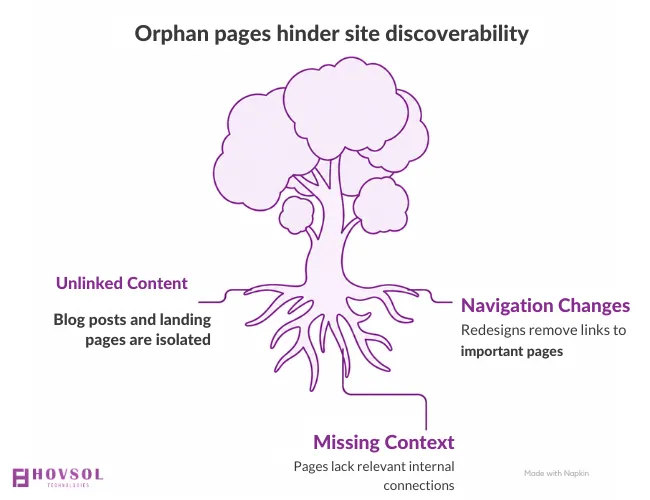
An orphan page is one that has no meaningful internal links pointing to it. It might live in your CMS, it might even show up in your sitemap but there’s no natural path for a user or a crawler to actually reach it by clicking around your own site.
This happens more than businesses expect.
Blog posts get published and never linked to again. Category or hub pages disappear during a redesign. Service pages get built but never added to navigation. Paid landing pages get created and never woven into the rest of the site. Old navigation links get deleted with nothing put in their place.
Internal links on the other hand tell search engines how your services and topics relate to each other, which content belongs in the same cluster, which pages matter and how a human would actually move through your site.
Our team once published an excellent Product Launch Plan Template, only to leave it unlinked from the resources hub. The sitemap might eventually discover it but “eventually discovered” is a poor substitute for being woven into the site’s actual topic structure.
What to Fix
Add real contextual links between service pages and related guides, location pages and local service pages, blog posts and pillar pages, product categories and products, case studies and related services, FAQs and the deeper content they point to.
It’s best to skip the temptation to bolt on random links just to pad a count. Internal links should help a human first. The crawler benefit follows.
6. Slow Pages, Weak Core Web Vitals and a Rough Mobile Experience
Technical SEO isn’t only about whether Google can access a page. It’s also about whether a real person on a real phone can use it without getting annoyed.
| Metric | What It Measures |
|---|---|
| Largest Contentful Paint (LCP) | How fast the main visible content loads |
| Interaction to Next Paint (INP) | How responsive the page feels after someone taps or clicks |
| Cumulative Layout Shift (CLS) | Whether things jump around unexpectedly while loading |
Core Web Vitals
Core Web Vitals are Google’s user-experience metrics for how quickly a page loads, how fast it responds to interactions and how stable the layout remains while loading. They matter because slow, unresponsive or shifting pages can frustrate visitors, reduce conversions and signal a weaker page experience to search engines.
Good Core Web Vitals are part of what Google considers a strong page experience, alongside general usability and security. And the causes of bad ones are almost always the same handful of culprits:
- A giant hero image
- Autoplay videos
- Page-builder themes doing far too much
- Too many plugins stacked on top of each other
- Render-blocking CSS or JavaScript
- Chat widgets
- Embedded maps
- Cookie banners
- Tracking scripts nobody remembers adding
- Un-optimized fonts
- Images with no dimensions specified in the markup
- Pop-ups that fire before the page has even finished loading
Imagine your service page loading a high-resolution background image, a chat widget, an embedded map, several tracking tags, a pop-up and a booking form, all before the “Call Now” button becomes usable. It’s miserable for someone standing in a parking lot trying to book an appointment on their phone.
What to Fix First
- Optimize whatever image sits above the fold
- Cut third-party scripts you don’t actually need
- Take a hard look at heavy widgets and embeds
- Be careful lazy-loading the hero image without testing it first, that one backfires often
- Add fixed width and height to images and embeds
- Test your actual page templates, not just the homepage
- Review mobile navigation, forms, buttons, tap targets like a stranger would
Google indexes and ranks based on the mobile version of your site, so a clunky mobile experience isn’t a cosmetic issue. It’s a ranking issue wearing a cosmetic disguise.
7. JavaScript, Cookie Consent, and Third-Party Script Problems
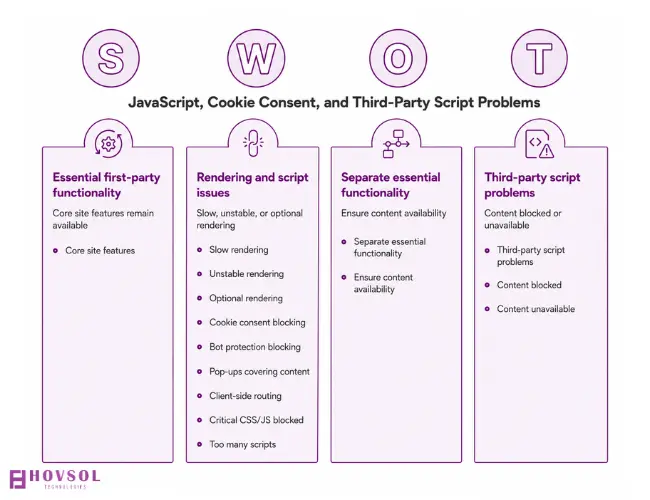
Most modern sites lean on JavaScript and that’s not a red flag on its own. The problem is when your most important information depends on rendering that’s slow, unstable or optional.
Watch for main content that only appears after a click. Internal links generated only after some complicated script finishes running.
Cookie-consent tools blocking first-party scripts that shouldn’t be optional. Bot protection or firewall rules accidentally blocking legitimate crawlers along with the bad ones. Pop-ups covering content or calls-to-action on mobile. Client-side routing producing thin, nearly empty HTML. Critical CSS or JavaScript blocked in robots.txt without anyone realizing it. Too many scripts, slowing interaction to a crawl.
What to Fix
Separate essential first-party functionality from optional analytics, advertising pixels, chat tools and personalization scripts.
Your goal was never to rip out every third-party script on the site. It’s to make sure your content, navigation, forms, service information stay available no matter what a visitor has or hasn’t consented to.
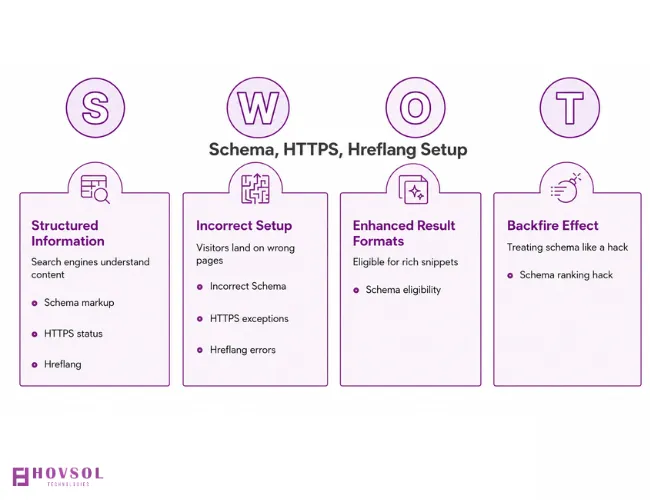
8. Incorrect Schema, HTTPS, and Hreflang Setup
Lower priority than indexing and redirect issues, generally. Still worth getting right.
Schema markup gives search engines structured information about a page, Organization, LocalBusiness, Product, Article, Breadcrumb, Event, Service, FAQ where it genuinely applies.
It should match what’s visibly on the page. No fake reviews, no hidden FAQ content, nothing a user can’t actually see.
Schema can make a page eligible for enhanced result formats but it doesn’t guarantee rankings and treating it like a ranking hack tends to backfire.
HTTPS status should be consistent and site-wide with no exceptions. Watch for pages still loading over HTTP, images or scripts requested through HTTP, internal links pointing to non-secure URLs or canonicals using the wrong protocol. Pick one secure version and redirect every alternative straight to it.
Hreflang matters if your site has real language or regional versions. For example a Canadian business running English and French pages, for instance. It tells search engines which version to show which audience. Get it wrong and visitors land on the wrong country, wrong language, wrong pricing, wrong everything.
How to Run a Technical SEO Audit
A useful audit isn’t a list of every warning a crawler tool can generate. Half of those warnings don’t matter. It’s a structured review of the technical factors actually affecting visibility, user experience and business outcomes.
Start with the business question, not the tool.
“Traffic dropped after the redesign”
“Our location pages aren’t showing up”
“We’re preparing for a migration”
“The site is slow on mobile”
“We want to clear technical barriers before investing in more content”
Then narrow down to priority page groups, service pages, product pages, category pages, location pages, lead-gen pages, blog hubs, anything with high historical traffic, backlinks or a direct line to calls and bookings.
Check Google Search Console before anything else.
Google search console shows you how Google actually sees your site, which beats guessing. It’s effective and free.
Review the Page Indexing report, URL Inspection on priority pages, the Sitemap report, Core Web Vitals, performance by page, canonical selection and any crawl or security alerts.
Test a few key URLs and request recrawling where needed, but repeated requests don’t make Google move faster. Fix the issue first, then submit once.
Crawl the site.
GSC is free but it might not reveal the more intricate technical issues or the root causes. A specialized technical SEO analysis becomes necessary in this case.
Test actual user journeys, not just crawl data.
Can someone navigate your site on mobile, open the menu, fill out a form, make a call, book an appointment, search products, get through checkout, see the service information before they’re forced to deal with a cookie banner?
Answering these will help you identify the issues early.
Turn the findings into a backlog someone can actually work from.
Each item needs the issue, its severity, affected URLs, root cause, business impact, the recommended fix, an owner, an estimated effort, how it’ll be validated and its status.
That’s what separates an audit from a stack of PDF warnings nobody reads twice.
How to Prioritize Technical SEO Fixes
Don’t rank issues by how many URLs got flagged. That number is almost always misleading.
Instead, check whether the issue blocks indexing or access to an important page, whether it hits a high-value service, product, location or lead page, whether it’s isolated or template-wide, whether it lines up with a real traffic or revenue dip, whether it’s actually hurting real users, and whether the fix is quick and safe to ship.
| Priority | Examples |
|---|---|
| Immediate | Important pages blocked by robots.txt, noindex on valuable pages, 5XX errors, broken migrations, wrong canonicals on major page types, redirect loops, major JS rendering failures, HTTPS or security failures |
| Can Wait | Redirect chains on important URLs, broken internal links to valuable pages, orphaned high-value pages, slow high-traffic landing pages, mobile usability issues, sitemap problems on priority URLs |
| Schedule or Monitor | Missing meta descriptions on low-traffic pages, minor duplicate headings, old 404s with no traffic or links, low-value archive pages, non-critical schema warnings |
Using a technical SEO tool makes this task easier as they categorize the technical issues by priority levels. For example, Semrush will categorize most pressing issues under “Errors” so you can fix those first.
Technical SEO Tools for Business Owners
There are many good SEO tools that offer technical SEO analysis. Our top picks would be:
| Tool Type | Examples | What It’s For |
|---|---|---|
| Google Search Console | Free, from Google | Indexing status, URL Inspection, sitemap monitoring, canonical information, search performance, Core Web Vitals, and security alerts |
| Crawling tool | Screaming Frog, Sitebulb | These SEO tools are specifically designed for deep technical audits and reveal accurate insights into where things are going wrong |
| Overall SEO platforms with built-in audit tools | Semrush Site Audit, Ahrefs Site Audit, Ubersuggest | These tools are designed for overall SEO audits and improvements and include technical site-testing tools |
| Performance tools | PageSpeed Insights, Lighthouse | LCP, INP, CLS, image issues, render-blocking files, JavaScript impact, and mobile performance |
| Structured-data validators | Schema validation tools | Confirming that markup is valid and matches the actual page content |
For most small businesses, free tools and the occasional crawl cover it. Large ecommerce sites, enterprises, marketplaces probably needs deeper crawls, log-file analysis, and more frequent monitoring.
Pick whichever suits your SEO/marketing needs. If you need help figuring out which tool you require, read our comparison of top SEO tools.
What to Fix Yourself and What to Hand to a Developer
| You or Your Marketing Team | Your Developer |
|---|---|
| Search Console monitoring | Robots.txt changes |
| Sitemap submission | Server-level redirects |
| Basic indexing checks | Canonical templates |
| Internal-link updates | JavaScript rendering fixes |
| CMS content consolidation | Hosting and server errors |
| Finding broken links | CDN configuration |
| Reviewing mobile forms and journeys | Cookie-consent logic |
| Prioritizing audit findings | Core performance architecture, security rules, template-level noindex, structured-data code |
Note: A ticket that says “remove the noindex directive from the service-page template, this affects 18 pages that should be indexed, validate by confirming the tag is gone from live source and testing the URL in Search Console” gets fixed correctly the first time.
A Super Useful Technical SEO Fixing Tracker
We understand that managing technical SEO issues can become a cumbersome task as you need the SEO team, content team, developers and sometimes creative teams to coordinate in tandem. To solve this, we developed an in house site auditing report and fixing tracker where all teams can collaborate. Use the link below to get a copy of our Technical SEO Audit Report template.
Do tell us if it’s helpful or if you want us to make any adjustments.
Download Technical SEO Audit Report Template →
[we will need to make a copy of our technical SEO audit tracker, brand it with HOVSOL branding, upload to https://hovsoltechnologies.com/resources/ page, and link it here.]
Technical SEO During Redesigns and Migrations
Migrations create more technical SEO damage than almost anything else businesses do to their own sites. We’ve watched years of ranking history get wiped out in a single weekend because nobody mapped the redirects properly.
Before launch, crawl the current site, export your important URLs and top landing pages and flag anything with backlinks, traffic, leads or revenue attached to it.
Build direct old-to-new redirect mappings. Check that staging noindex rules aren’t going to survive the move. Test canonical tags, robots.txt, forms, analytics, conversion tracking and call tracking.
Generate a clean sitemap. Review internal links and navigation while you’re at it.
After launch,
- Submit the updated sitemap
- Test the major redirects
- Inspect priority URLs in Search Console
- Watch indexing and crawl errors closely for the first few weeks
- Keep an eye out for 404s, 5XX errors and unexpected canonical shifts
- Confirm the mobile forms, booking tools, phone links, chat, calls-to-action all still work
Remember, “it worked in staging” has fooled more than one business owner.
Technical SEO and AI Search
Technical SEO hasn’t gone anywhere just because AI Overviews and AI Mode showed up. For Google’s AI features, the baseline is the same as it’s always been.
Pages need to be indexed and eligible for Search in the first place and the same goes for AI crawler bots. There’s no secret separate checklist for showing up as a supporting link in an AI Overview or a ChatGPT answer.
So the fundamentals still carry the weight.
For AI search tools and AI agents, make sure your robots.txt, CDN or firewall rules are not accidentally blocking legitimate crawlers from accessing your public website.
You can also add this emerging Content Signals policy statement in robots.txt to state how AI systems may use your public content:
“Content-Signal: ai-train=no, search=yes, ai-input=no”
This tells compliant crawlers that your content may be used for traditional search indexing but not for AI model training or real-time AI-answer input. It is useful for businesses that want search visibility while reserving their content from broader AI use.
Keep in mind that Content Signals are still a proposed extension to robots.txt, not a universal standard. They express your policy, but they do not guarantee that every AI bot, agent, CDN, or crawler will follow it. You should still check that your firewall, CDN, and bot-protection settings are not accidentally blocking the search or AI agents you deliberately want to allow.
Technical SEO is still the same foundation it’s always been, the thing that makes your information easy to find and understand in the first place.
Where to Start
Technical optimization is the layer that decides whether search engines can find your pages, read them properly and choose the right one to show searchers.
You may get a perfect audit score but that number means nothing to a customer trying to book an appointment.
The real goal is making sure your important pages can be found, crawled, rendered, indexed, understood and actually used by real people.
Start with the visibility blockers, noindex tags, robots.txt mistakes, server errors, broken redirects, wrong canonicals, rendering failures. Then move on to site structure, internal links, mobile usability, and speed.
The most useful technical SEO audit was never the one with the longest warning list. It’s the one that tells you, in plain language, exactly what’s costing you traffic and leads right now and hands the right person a plan to fix it before next quarter’s numbers tell the same story again.
Table of Contents
- Key Takeaways
- What is Technical SEO?
- How Search Engines Process Your Website
- Discovery
- Crawling
- Rendering
- Indexing
- Canonicalization
- Ranking
- 1. Important Pages Blocked by Robots.txt or Noindex Tags
- How to Check If Your Page is Set to “noindex”
- What to Fix
- 2. XML Sitemap Problems
- 2. XML Sitemap Problems
- 3. Duplicate URLs and Incorrect Canonical Tags
- What to Fix
- 4. Redirect Chains, Broken Links, 404s, 5XX Errors
- 5. Weak Internal Linking and Orphan Pages
- What to Fix
- 6. Slow Pages, Weak Core Web Vitals and a Rough Mobile Experience
- Core Web Vitals
- What to Fix First
- 7. JavaScript, Cookie Consent, and Third-Party Script Problems
- What to Fix
- 8. Incorrect Schema, HTTPS, and Hreflang Setup
- How to Run a Technical SEO Audit
- How to Prioritize Technical SEO Fixes
- Technical SEO Tools for Business Owners
- What to Fix Yourself and What to Hand to a Developer
- A Super Useful Technical SEO Fixing Tracker
- Technical SEO During Redesigns and Migrations
- Technical SEO and AI Search
- Where to Start